User guide: Upload Portal for Synology NAS
This guide explains how to install Upload Portal on a Synology NAS running DSM 7, how to create secure upload links that save files into a folder you choose, and how to share those links safely over the internet.
🇳🇱 Liever Nederlands? Lees de Nederlandse handleiding.
Contents
- Requirements
- Installation
- Creating upload users
- Folder permissions
- Creating and sharing upload links
- Access from the internet (HTTPS)
- What uploaders see
- Activity and logs
- Updating, backup and uninstalling
- Troubleshooting
- Security
1. Requirements
- A Synology NAS with DSM 7.0 or newer
- Node.js v20 from Package Center (installed automatically if missing)
- An administrator account on DSM
- Optional, for sharing links outside your own network: a (sub)domain that points to your NAS, and port 443 forwarded to the NAS
2. Installation
- Download the latest
UploadPortal-x.y.z.spkfrom the Releases page. Optionally verify the download with the.sha256file next to it. - Open Package Center → Settings → General. Under Trust Level choose Any publisher and click OK. Upload Portal is not signed by Synology; DSM only installs such packages with this setting.
- Click Manual Install, choose the
.spkfile and click Next. - If Node.js v20 is not installed yet, Package Center asks to install it. Confirm.
- Accept the third-party warning and finish the installation.
- Open the main menu in DSM and start Upload Portal. Only users in the
administratorsgroup can see and open it.
After installation the upload server runs on port 8090. The admin app runs in a normal DSM window and uses your DSM login, so there is no separate admin password.
3. Creating upload users
Upload users are not DSM users. They can only log in on upload pages and have no access to DSM, File Station, SMB or anything else on your NAS.
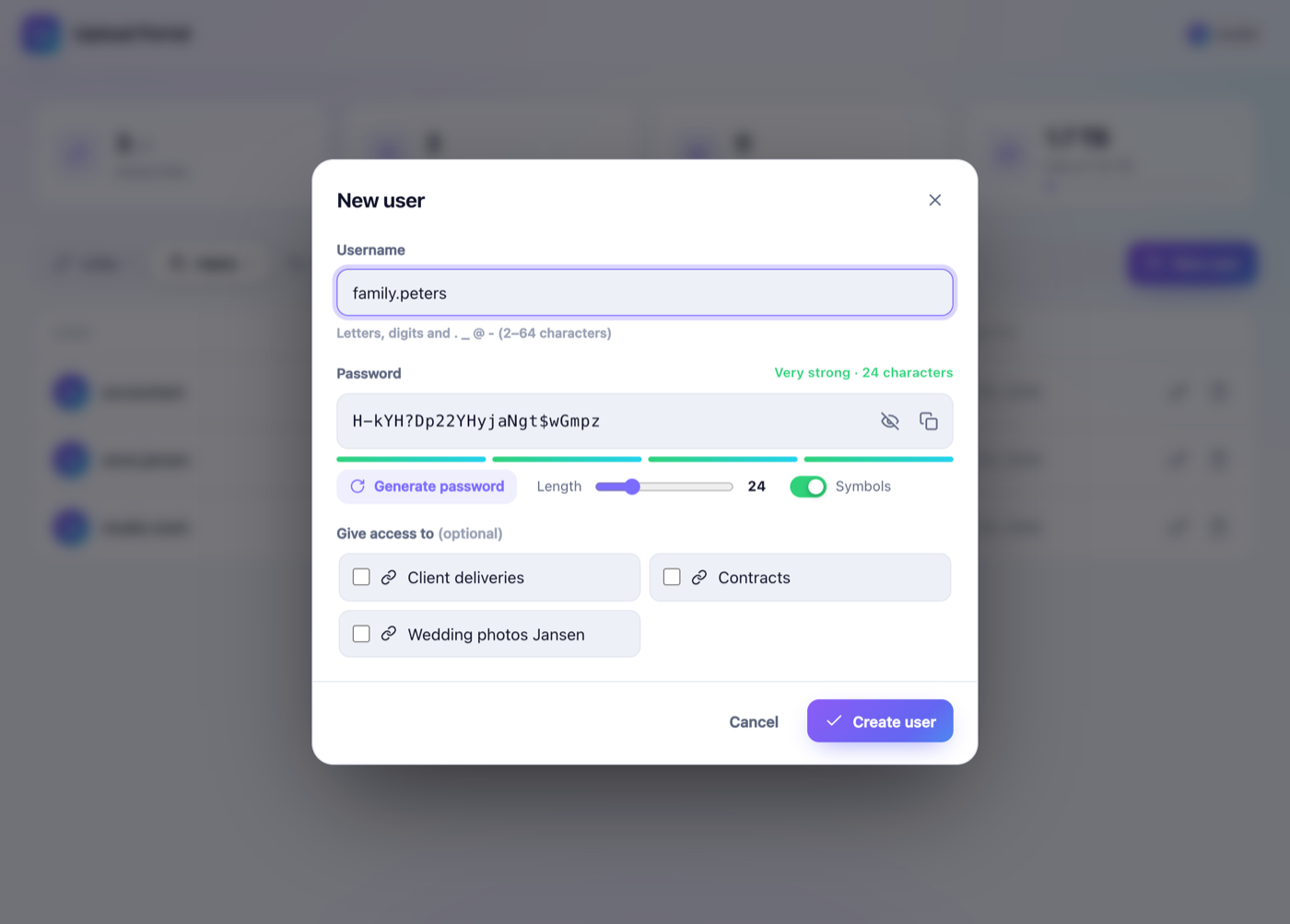
- Go to the Users tab and click New user.
- Enter a username, for example
anna.jansenor an email address. - A secure password is generated automatically:
- 24 characters by default with upper- and lowercase letters, digits and symbols
- use the Length slider for 12–64 characters, and toggle Symbols
- ambiguous characters such as
0/Oand1/l/Iare never used - the strength meter shows how strong the password is
- Optionally tick the links this user may use straight away.
- Click Create user.
You now see the login details once, each with a copy button, plus a ready-to-send invitation that you can copy or email. The password cannot be viewed later. If it gets lost, set a new one with the 🔑 key icon next to the user. Existing sessions of that user are logged out immediately.
4. Folder permissions
DSM 7 runs every third-party package as its own system user. Upload Portal can therefore only save files in shared folders where the system user UploadPortal has read/write permission.
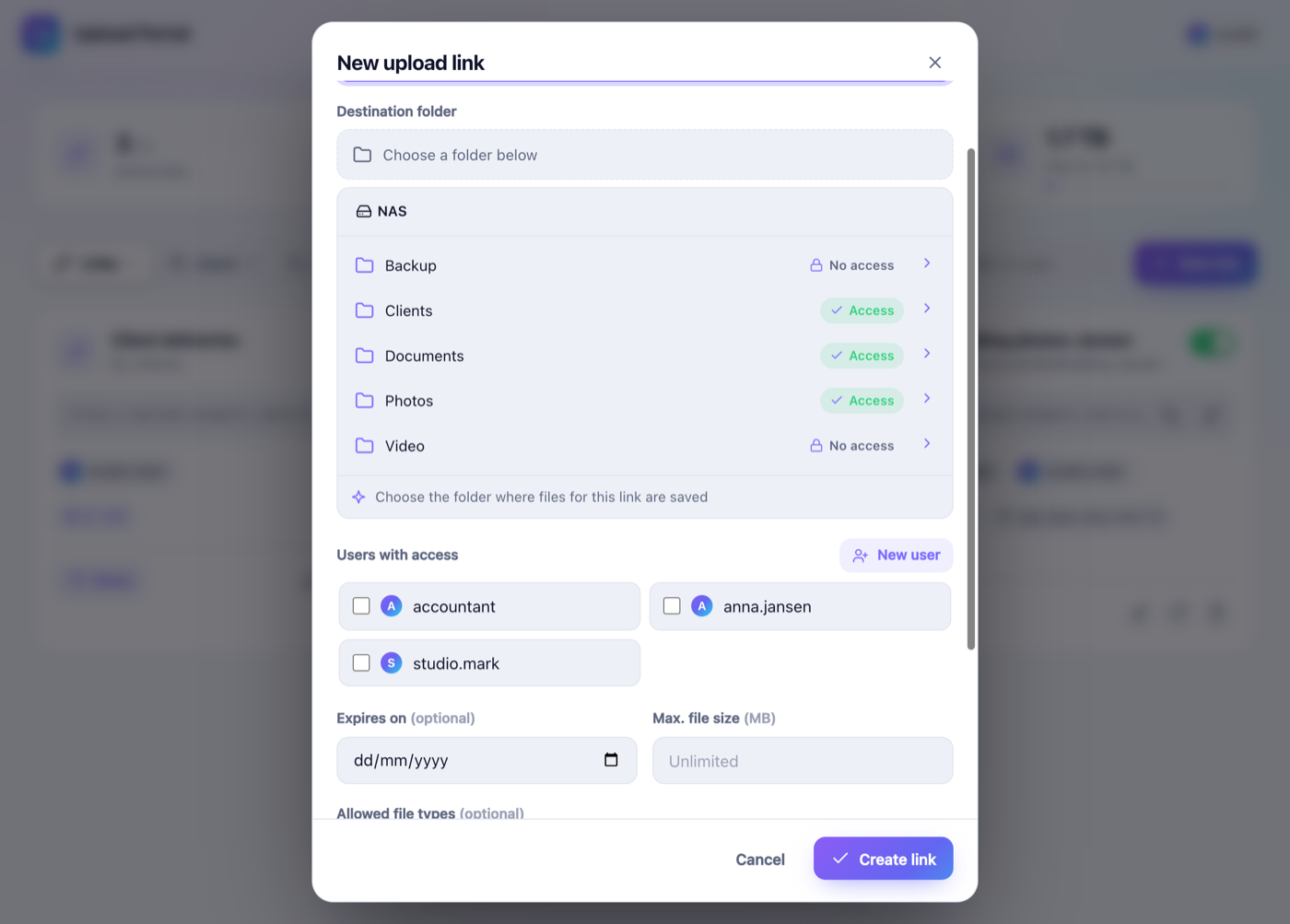
In the folder picker of a link you can see per shared folder:
- ✅ Access: uploads are possible
- 🔒 No access: permission is still missing
Option A: from the app. Open the folder and click Grant access. Upload Portal sets the permission via DSM, using your admin session.
Option B: manually in DSM
- Open Control Panel → Shared Folder.
- Select the shared folder and click Edit.
- Open the Permissions tab and choose System internal user in the drop-down at the top left.
- Find UploadPortal, tick Read/Write and click Save.
The permission applies to the whole shared folder, including all subfolders.
5. Creating and sharing upload links
- Go to the Links tab and click New link.
- Name: what uploaders see, e.g. “Wedding photos Jansen”.
- Destination folder: click through your NAS and pick the folder. Files are saved directly in this folder; Upload Portal never creates subfolders. Even when someone drops a whole folder, all files land in the chosen folder.
- Users with access: tick who may upload. You can also create a new user right here.
- Optional settings:
- Expires on: after this date the link stops working
- Max. file size in MB
- Allowed file types: comma-separated extensions such as
jpg, png, pdf. Quick buttons add common groups: photos, video, documents, audio and archives. Leave empty to allow everything. Other types are refused with a clear message stating which types are allowed. - Link is active: turn a link off temporarily without deleting it
- Click Create link. The share window opens with the URL and an invitation text that you can copy or email.
Managing links. Every link card shows the folder, users, limits and the number of uploads. You can:
- Share: copy the link or the invitation again
- ✏️ Edit: change any setting
- 🔄 New URL: the old address stops working immediately, which is useful if a link was shared with the wrong person
- 🗑️ Delete: uploaded files stay on your NAS
Tip: send the password through a different channel than the link, for example the link by email and the password by text message.
6. Access from the internet (HTTPS)
Upload pages are served on http://<nas-ip>:8090 inside your network. To share links with people outside, use DSM’s built-in reverse proxy with HTTPS:
- Point a (sub)domain such as
upload.example.comto your public IP address. Synology DDNS also works. - On your router, forward TCP port 443 to your NAS.
-
In DSM open Control Panel → Login Portal → Advanced → Reverse Proxy → Create:
Source Destination Protocol HTTPS HTTP Hostname upload.example.comlocalhostPort 443 8090 - Get a free certificate: Control Panel → Security → Certificate → Add → Let’s Encrypt for
upload.example.com, and assign it to the reverse proxy entry under Settings. - In Upload Portal go to Settings and enter
https://upload.example.comas the public address. All links now use this address.
Do not forward port 8090 itself to the internet; let the reverse proxy handle HTTPS.
7. What uploaders see
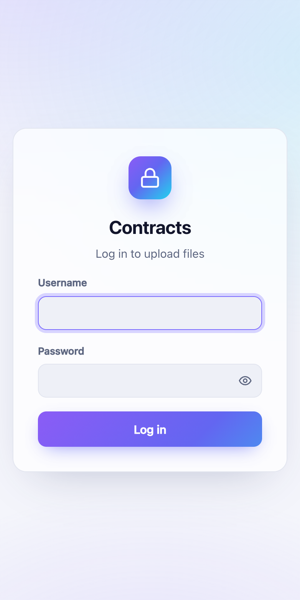
- They open the link and log in with their username and password. Caps-lock warnings and a show-password button help with long passwords.
- They drag files (or whole folders) onto the page, or use Choose files / Choose folder. The page lists the allowed file types and the maximum size when these are set.
- Each file shows a progress bar, its speed and the remaining time. The summary shows the total progress, the speed in MB/s, the time remaining and the number of files done.
- Files that aren’t allowed are skipped with a message, while the other files keep uploading.
- When the connection drops, uploads resume automatically. Closing the tab during an upload triggers a warning.
- If a file with the same name already exists, the new one is saved as
name (1).ext. Nothing is ever overwritten.
8. Activity and logs
- The Activity tab lists every upload with file, user, link, size and time, and you can search it.
- The overview at the top shows active links, users, the total uploaded and free disk space.
- Server log:
/var/packages/UploadPortal/var/server.log. Package Center also links to it via Upload Portal → View log.
9. Updating, backup and uninstalling
- Update: download the new
.spkand use Manual Install again. Data is kept. Afterwards, refresh DSM in your browser (Ctrl/Cmd + Shift + R). - Backup: all users, links and history are stored in one file:
/var/packages/UploadPortal/var/db.json. To back it up, copy it over SSH, for examplesudo cp /var/packages/UploadPortal/var/db.json /volume1/backup/. That folder is included in your normal backups. - Uninstall: via Package Center. Uploaded files stay in your shared folders. The package data (
db.json) may be removed, so make a backup first if you want to keep your links.
10. Troubleshooting
| Problem | Solution |
|---|---|
| The package does not install | Set Trust Level to Any publisher and make sure Node.js v20 is available in Package Center. |
| “Upload Portal is not running” in the admin app | Start the package in Package Center and check server.log. |
| “Your DSM session has expired” | Refresh the DSM page and open the app again. |
| A folder shows No access | See Folder permissions. |
| A link card shows “Folder not found” | The folder was renamed or deleted. Edit the link and choose a folder again. |
| Links only work inside your own network | Set up the reverse proxy and fill in the public address under Settings. |
| Uploaders see “File type not allowed” | Add the extension under allowed file types for that link, or leave the field empty. |
| Too many login attempts | After 8 failed attempts the IP address is blocked for 15 minutes. |
Still stuck? Open an issue and include your DSM version and the relevant lines from server.log.
11. Security
- Upload users have no access to DSM or your files; they can only upload.
- Passwords are stored as scrypt hashes. Sessions use signed HttpOnly cookies.
- After 8 failed logins an IP address is blocked for 15 minutes.
- Upload names and paths are sanitized, so files can never be written outside the chosen folder.
- Existing files are never overwritten, and uploaders can’t list or download files.
- The admin API is only reachable through DSM: it requires a valid DSM session from an administrator, and the CGI bridge then forwards the request with a secret key over localhost.
- Use HTTPS (section 6) when you share links over the internet.
Found a vulnerability? Please follow SECURITY.md.